
Billing group margin is the difference between what a customer is charged through AWS Billing Conductor and what those same accounts actually cost in AWS, and it is the clearest signal an MSP has that a billing relationship is drifting. MontyCloud DAY2 now lets you track billing group margin across your portfolio and manage Standard and Billing Transfer Billing Groups end to end, from the first signal to a controlled fix, in one workflow.
In this blog, you’ll learn how DAY2 calculates and surfaces billing group margin, how to trace a margin change back to the configuration behind it, and what you can safely change in the current billing month.
What is billing group margin in AWS Billing Conductor?
Billing group margin is Charged Amount minus AWS Cost for a set of accounts that AWS Billing Conductor groups together for one end customer. Charged Amount is the pro forma charge your pricing plan produces and AWS Cost is the actual AWS charge, so margin shows whether your billing configuration preserves the outcome you intended.
AWS Billing Conductor, the AWS service that applies custom pricing plans, pricing rules, and Custom Line Items to groups of accounts, produces an alternate pro forma view of billing for showback and chargeback. That view never changes the actual invoice AWS sends to the payer, which is why it works as a safe foundation for customer-specific pricing, and DAY2 builds its Billing Group management and analysis directly on top of it.
A positive margin means Charged Amount is above AWS Cost, and a negative margin means the configuration produced a customer charge below what AWS billed for those accounts in that period. Pricing Plans, account scope, and Custom Line Items can each move the result in either direction.
Why is margin hard to manage as your customer base grows?
Margin gets harder to manage because the information needed to explain it is scattered. As your customer count grows, the margin figure tends to live in one place while the Pricing Plan, linked accounts, transfer relationship, and data freshness needed to investigate it live in AWS billing tools, spreadsheets, and handoffs between teams.
For an AWS MSP, customer billing does not end when AWS publishes the bill. Your team still has to organize customer accounts, apply contracted pricing, account for fees or credits, validate each billing relationship, and confirm that the resulting charge keeps the margin you agreed to. When a margin moves, the first question is rarely “what is the number” and almost always “which part of the setup produced it,” and answering that across several tools is slow and easy to get wrong.
DAY2 connects those tasks so that you can create, review, update, and delete Standard and Billing Transfer Billing Groups, monitor margin at the portfolio and customer level, and move from a financial signal to the billing configuration behind it without leaving the workflow.
How does DAY2 handle Standard and Billing Transfer Billing Groups?
DAY2 manages both AWS billing models in one consistent workflow while keeping the controls that are specific to each. A Standard Billing Group links customer accounts inside your AWS Organization, while a Billing Transfer Billing Group represents a customer’s entire AWS Organization that has transferred its billing to yours through [AWS Billing Transfer](INTERNAL LINK: AWS Billing Transfer blog).
AWS Billing Conductor treats these two models differently, and DAY2 reflects that. In a Standard Billing Group, each account can belong to only one billing group in a billing period. In a Billing Transfer Billing Group, the group maps one to one with the source AWS Organization and must include every linked account in it, which is why account scope for a transfer group is defined by the transfer itself rather than edited by hand.
| Focus | Standard Billing Group | Billing Transfer Billing Group |
|---|---|---|
| Operating model | Groups customer accounts within your AWS Organization. Each account belongs to one Standard Billing Group per billing period. | Connects a distinct source AWS Organization to your receiver organization through AWS Billing Transfer. |
| Relationship identity | Management Account, Primary Account, linked accounts, and optional Auto Account Association | Billing Transfer name and status, Receiver Tenant and Account, Source Tenant and Account |
| Financial context | Pricing Plan, Charged Amount, AWS Cost, Margin, monthly variance, Custom Line Items | The same financial fields, plus transfer status |
| Current-month edits | Name, description, linked accounts, Pricing Plan, Auto Account Association, and tags. The Primary Account stays fixed. | Name, description, Pricing Plan, and tags. Transfer relationship details stay read-only. |
How do you investigate a margin change in DAY2?
You investigate a margin change in DAY2 by moving through four checks in order: scan the portfolio for the groups that moved, isolate the specific Billing Group, confirm whether the change is a one-month event or a trend, and validate the configuration behind the number before you edit anything.
Scan the portfolio for margin movement
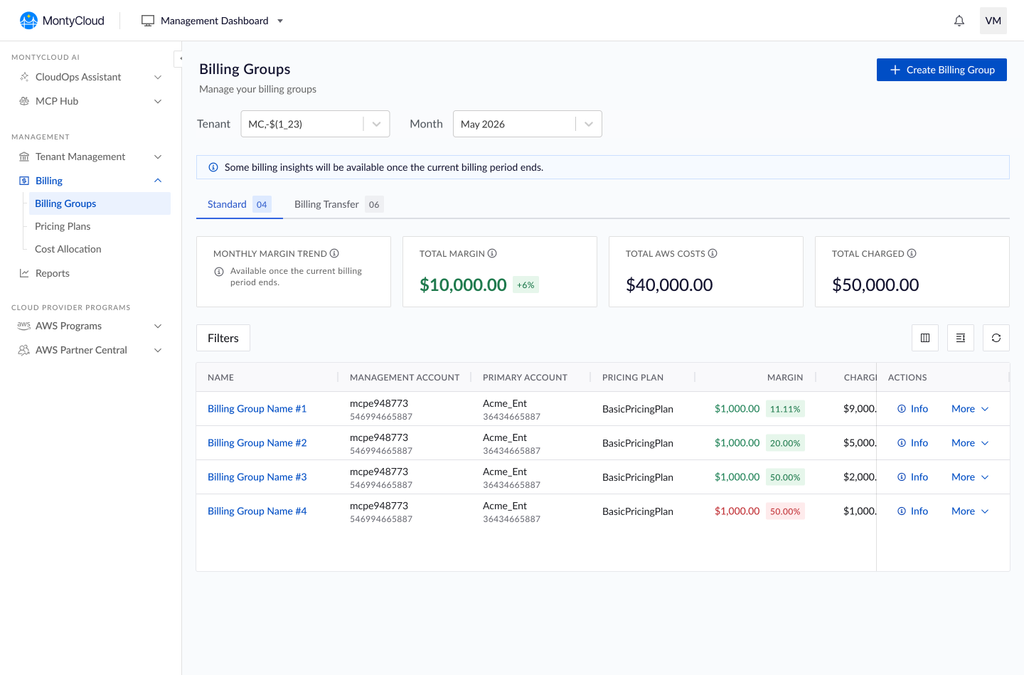
Select a tenant, billing month, and Billing Group type, and DAY2 summarizes Total Charged Amount, Total AWS Cost, and Total Margin for that scope, then lists the result for each Billing Group. Once a billing period closes, the Monthly Margin Trend indicator shows how many Billing Groups gained or lost margin compared with the previous month. It counts groups moving in each direction rather than the dollar value of the change, so it tells you where to look first.

Billing Transfer portfolio view with monthly margin trend, Total Margin, Total AWS Cost, and Total Charged Amount.
Isolate the Billing Groups that need review
The table can show Monthly Margin Variance for each Billing Group alongside AWS Cost, Charged Amount, Pricing Plan, and the fields that define the relationship. For Billing Transfer groups, transfer status and source account sit next to the financials, so you do not mistake a pending or changing transfer for a pricing problem. Check Last Synced On before you act, because a margin movement reported on stale data is not a reason to change pricing or account assignments.

Expanded Billing Transfer columns show financial, transfer relationship, and last-sync context in one table.
| Signal | What it represents | How you use it |
|---|---|---|
| Total Charged Amount | Combined pro forma customer charge for the selected Billing Groups | Compare with AWS Cost to see the aggregate commercial result |
| Total AWS Cost | Combined actual AWS charges for the selected Billing Groups | See whether cost movement, not customer charge, is compressing margin |
| Total Margin | Total Charged Amount minus Total AWS Cost | Monitor billing margin for the tenant, month, and group type selected |
| Monthly Margin Trend | Count of Billing Groups with higher or lower margin than last month, after the period closes | Point review toward customers whose margin is declining |
| Monthly Margin Variance | Period-over-period margin movement for one Billing Group | Separate a portfolio-wide shift from a customer-specific change |
| Last Synced On | Latest sync timestamp for the Billing Group data | Confirm data freshness before changing configuration |
Separate a one-month change from a longer trend
Open a Billing Group to compare Charged Amount and AWS Cost over 3, 6, 12, 18, or 24 months, in cumulative and monthly views. A longer window is what separates a one-time adjustment from sustained margin compression, and you can download the chart as a PNG for a customer or management review or export the underlying data as CSV.

Billing Group Overview comparing cumulative and monthly Charged Amount with AWS Cost.
Validate the billing setup behind the number
The Details view pairs the selected month’s AWS Cost, Charged Amount, Margin, and Custom Line Item count with the configuration that defines the group, including the Pricing Plan, tags, linked accounts or source and receiver identities, and who created or last modified it. DAY2 brings the signal, trend, and configuration together, but it does not assign a root cause, so use the evidence to test the likely drivers:
- Compare Charged Amount and AWS Cost to see which side of the equation moved.
- Check the Pricing Plan and Custom Line Items for an expected fee, credit, markup, or discount.
- Confirm linked accounts or transfer relationship fields match the intended customer scope.
- Review transfer status and Last Synced On before acting.
Custom Line Items are a good first stop when Charged Amount changes unexpectedly, because each one can add a charge or a credit to the pro forma amount, and DAY2 shows its charge type, allocated account, line item type, and value.

Standard Billing Group details with financial summary, billing configuration, Linked Accounts, and Custom Line Items.
What can you change in a Billing Group, and what stays locked?
You can create, update, and delete Billing Groups in the current billing month, while previous months stay read-only and relationship identities stay locked. That combination lets you correct a configuration the moment the evidence supports it, without rewriting history or accidentally changing the wrong billing relationship.
| Action | What DAY2 supports | Control |
|---|---|---|
| Create | Standard and Billing Transfer Billing Groups with the configuration each model needs | A guided flow separates group details, pricing, account or transfer context, and tags |
| Review | Portfolio KPIs, monthly trend, group history, configuration, relationship fields, and Custom Line Items | Tenant, month, and group type keep analysis scoped to the intended period |
| Update | Supported fields for the current billing month | Previous months are read-only, and the Primary Account and Billing Transfer identities stay locked |
| Delete | An eligible current-month Billing Group | You acknowledge the impact and type the exact Billing Group name to confirm |
Deleting a Standard Billing Group unlinks its accounts and removes its Pricing Plan assignment and Custom Line Items, and a Standard Billing Group with Auto Account Association enabled cannot be deleted. Deleting a Billing Transfer Billing Group detaches it from the Billing Transfer relationship. In both cases, historical pro forma invoices remain available.
Plan account moves with care, because AWS Billing Conductor recomputes both affected billing groups back to the start of the billing period when an account moves mid-month. Custom Line Items are visible from the Billing Group details, while creating, changing, or deleting them stays in Cost Allocation, so billing adjustments keep a single control point.
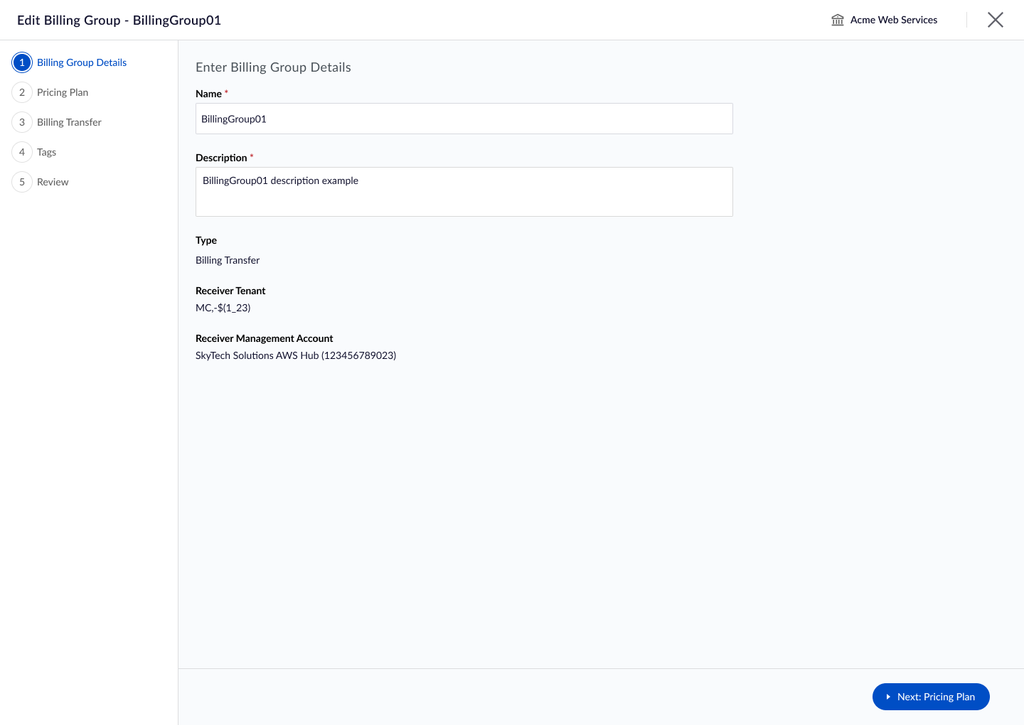
Billing Transfer edit flow keeps receiver and transfer relationship details read-only while supported fields remain editable.
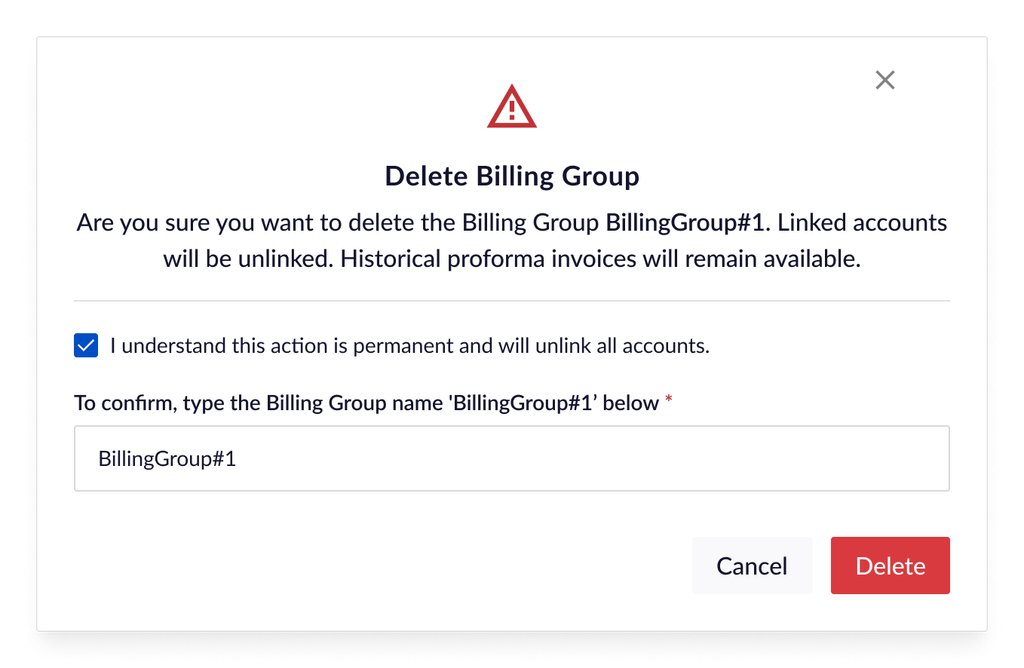
Deletion requires an impact acknowledgment and exact Billing Group name before confirmation.
What This Changes for Your Billing Practice
The real change is that margin review becomes a repeatable operating loop instead of a monthly reconstruction exercise: you detect margin movement, validate the billing relationship, make an informed current-period change when one is needed, and keep the historical evidence for the next review.
- Billing operations can review a customer charge and the configuration that produced it without rebuilding the relationship across several tools.
- Finance and FinOps can prioritize customers with declining margin and tell an isolated dip from a sustained trend.
- Service and account teams can bring a clearer financial history into pricing reviews and customer conversations, while keeping billing margin separate from full account profitability.
- Governance teams get current-month edit rules, locked relationship fields, data-freshness checks, and confirmed deletion to cut down on avoidable billing changes.
Get Started
In DAY2, go to Management Dashboard > Billing > Billing Groups, select a tenant and billing month, choose Standard or Billing Transfer, and use the portfolio metrics to pick a group to review. To see margin tracking on your own portfolio, request a demo and the MontyCloud team will walk you through it.
FAQs
Does pro forma billing change the AWS invoice?
No. Pro forma billing from AWS Billing Conductor is an alternate view of billing data used for customer showback, chargeback, and analysis. It has no effect on the actual invoice AWS sends to the payer account, so you can apply customer-specific pricing in DAY2 without changing what you owe AWS.
Why can a past month’s margin change after the billing period closes?
AWS can apply adjustments to billing data after a billing period ends, and DAY2 reflects whatever data is available at the latest sync. When you reconcile a historical value, check the selected billing month and the Last Synced On timestamp so you know which version of the data you are comparing against.
Can you edit Custom Line Items from the Billing Group details page?
You can review them there, including charge type, allocated account, line item type, and value. Creating, updating, or deleting Custom Line Items stays in Cost Allocation in DAY2, which keeps a single control point for billing adjustments while the Billing Group workflow focuses on the relationship itself.
How much Billing Group history can you review and export in DAY2?
DAY2 shows 3, 6, 12, 18, or 24 months of Charged Amount and AWS Cost for a Billing Group, in cumulative and monthly views. You can download the trend chart as a PNG for customer or management reviews and export the underlying data as CSV for deeper analysis.
Learn more about the underlying AWS service in the AWS Billing Conductor User Guide.